
2 min read
Tune the AI's writing voice and tone
Set how the AI drafts messages — professional, friendly, or direct — and what topics it should always escalate to you.
Out of the box, the AI defaults to a friendly-professional tone. You can tune this two ways: a style slider that affects every message, and a set of escalation rules for topics the AI shouldn't decide on alone.
Step by step
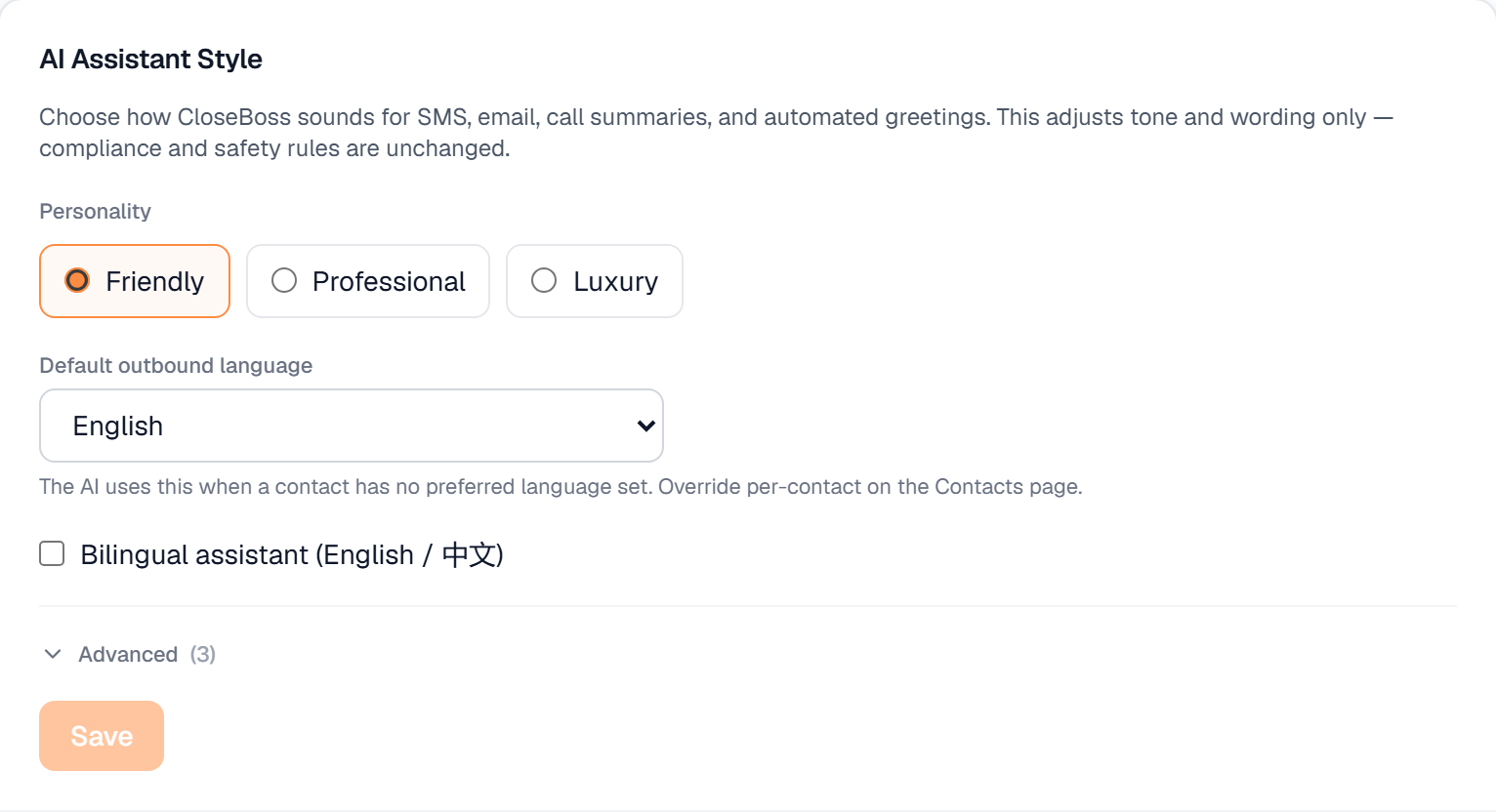
Open Settings → AI team → AI Assistant Style.
Pick a tone: Professional, Friendly, or Direct. Optional: upload 2–3 sample messages you've written and click Train from samples — the AI learns your phrasing patterns.
Under Escalation rules, add topics that should always go to you instead of auto-replying: 'price negotiation,' 'legal questions,' 'specific contract terms.' These flag the message as Needs reply.
Save. New drafts use the new voice immediately; in-flight sequences keep their existing copy.
What it looks like
Need help with something else? Browse all guides or email support.
