
4 min read
The compliance rules you cannot turn off
STOP handling, first-SMS opt-out language, the agent-of-record check, California AVM disclosure, and the 30-day draft-only window on new accounts.
Some behavior is enforced for you and cannot be switched off. Real-estate messaging carries more legal exposure than most software accounts for, so these run whether you configure anything or not.
Read this once. It explains several things that otherwise look like bugs — most commonly, why your first 30 days force every message into review, and why some equity messages refuse to send.
These guardrails implement our compliance requirements but are not legal advice. If you message at scale or work across multiple states, have your own counsel review the behavior before relying on it.
Step by step
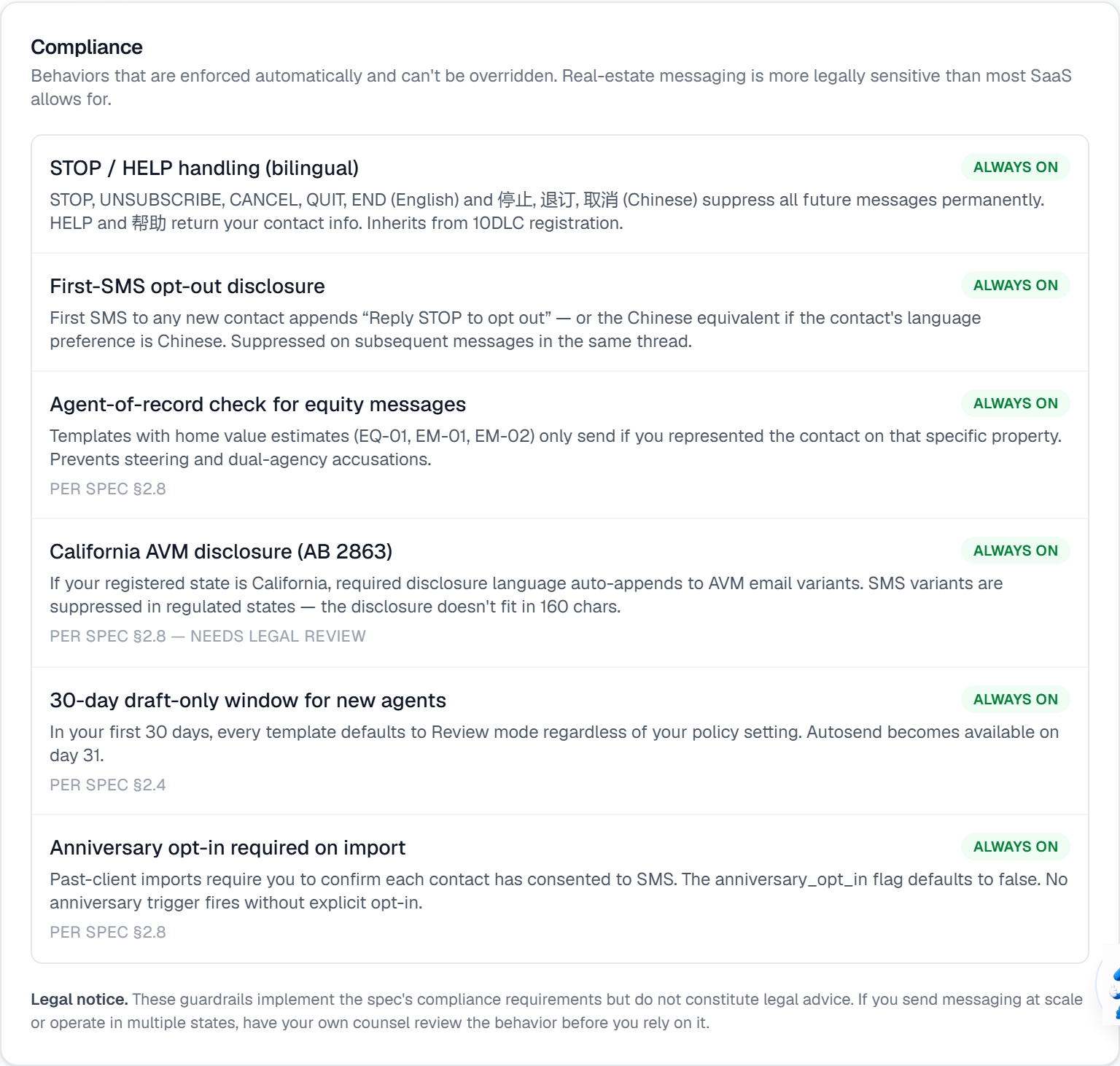
STOP / HELP handling is bilingual and permanent. STOP, UNSUBSCRIBE, CANCEL, QUIT and END — plus the Chinese equivalents — suppress all future messages to that contact forever. HELP returns your contact information.
Your first SMS to any new contact automatically appends “Reply STOP to opt out”, in Chinese if that is the contact's language preference. It is suppressed on later messages in the same thread, so you are not repeating it.
Equity and home-value templates run an agent-of-record check: they only send if you represented that contact on that specific property. This is what prevents steering and dual-agency complaints, and it is why one of these sometimes refuses to send.
If your registered state is California, AB 2863 disclosure language auto-appends to AVM email variants. The SMS variants are suppressed in regulated states, because the disclosure does not fit in 160 characters.
For your first 30 days, every template defaults to Review mode no matter what your Review Policy says. Auto-send becomes available on day 31.
Imported past clients require explicit anniversary opt-in, per contact. The flag defaults to off, and no anniversary message fires without it.
You can read the current list any time at Settings → Channels → Compliance.
What it looks like
Related
Need help with something else? Browse all guides or email support.
