
3 min read
Let AI run your social media
Hand posting frequency, channels, topics and timing to the AI — or set them yourself and keep approval rights.
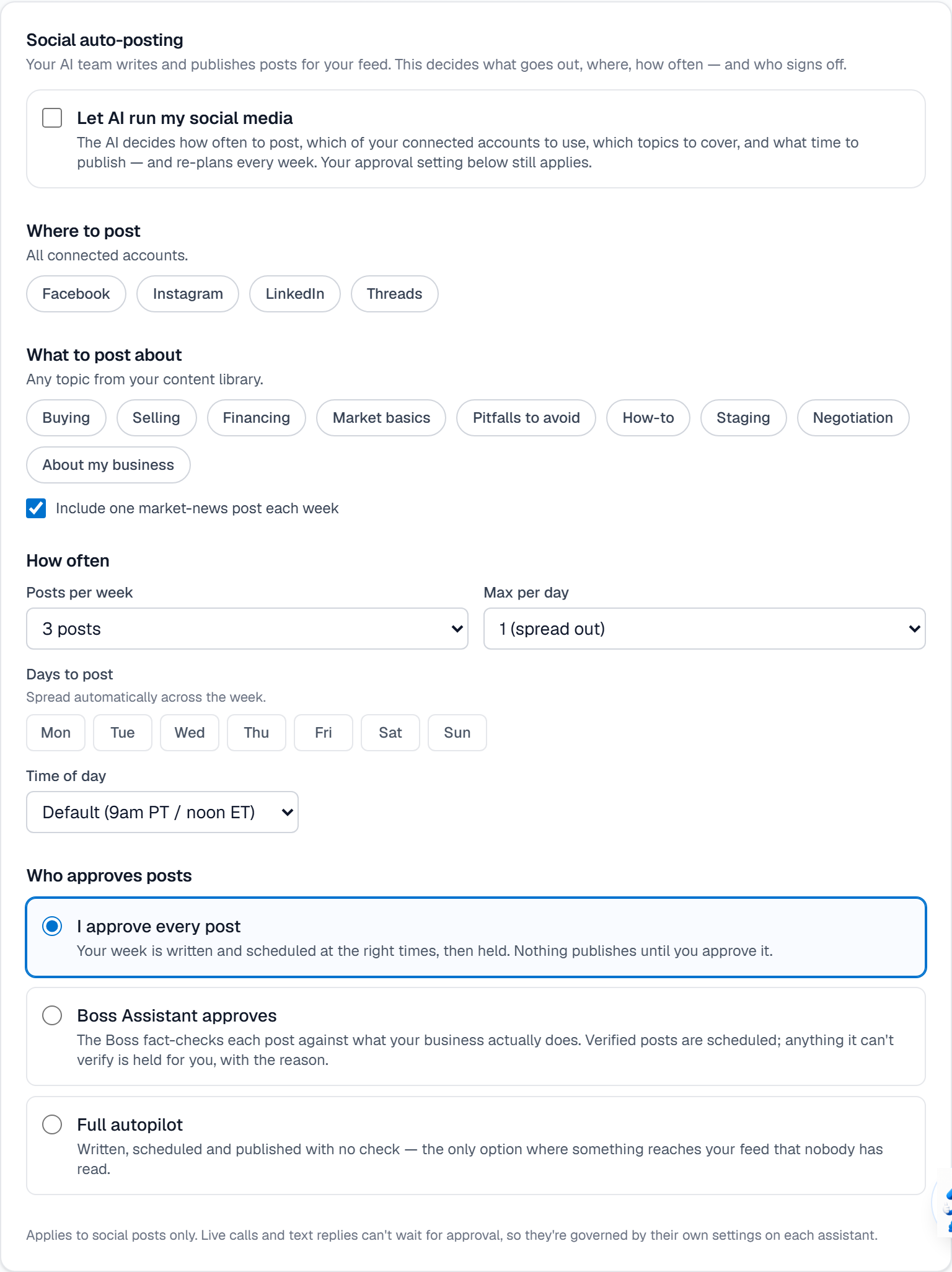
Autopilot decides how often to post, which connected accounts to use, which topics to cover and what time to publish, then re-plans every week.
Your approval setting applies either way. Autopilot controls what gets drafted and scheduled, not whether it publishes without you.
Step by step
Connect your accounts first, at Settings → Channels. Autopilot can only post where you are connected.
Find Social auto-posting on the same tab.
Turn on Let AI run my social media to hand over frequency, channels, topics and timing. Leave it off to set them yourself.
If you are setting it yourself: choose Where to post, What to post about, Posts per week, Max per day, Days to post and Time of day. There is also a switch to include one market-news post each week.
Set Who approves posts. “I approve every post” writes and schedules the week but publishes nothing until you say so. “Boss Assistant approves” fact-checks each post against what your business actually does, schedules what it can verify, and holds the rest with a reason. “Full autopilot” is the only option where something reaches your feed that nobody has read.
Note that this governs social posts only. Live calls and text replies cannot wait for approval, so they are controlled by each assistant's own settings.
Save. With AI automation on, the settings below it are chosen for you each week and shown read-only.
What it looks like
Related
Need help with something else? Browse all guides or email support.
